TL;DR
Learn how to properly export videos for real-time use in Max or other real-time softwares. The focus is on choosing the right video codec so your interactive patches run smoothly without lag or stuttering.
If you prefer text, below you find a list of the video’s key concepts, with images.
Overview
When working with real-time interaction:
- Your computer must play and manipulate video instantly
- Some video formats are optimized for file size and linear execution
- Others are optimized for performance
The key idea:
Highly compressed video = smaller files but slower playback in real time
The Problem: H.264 in Real-Time
H.264 is one of the most common video formats:
- Great for YouTube and storage
- Very small file size
But:
- Requires heavy decompression
- Causes stuttering when manipulated in real time
Example:
- Scrubbing through video with movement → laggy
- Frame rate drops significantly under interaction
Even on a good computer, performance suffers.
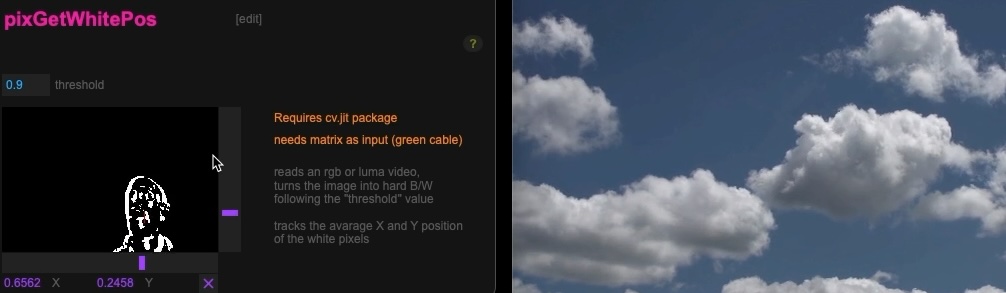
Performance Test Setup
In the example patch:
- Camera tracks movement position (left ↔ right)
- Movement controls timeline scrubbing of a video
When using H.264:
- Standing still → OK
- Moving → heavy lag
- Frame rate drops (sometimes very low)
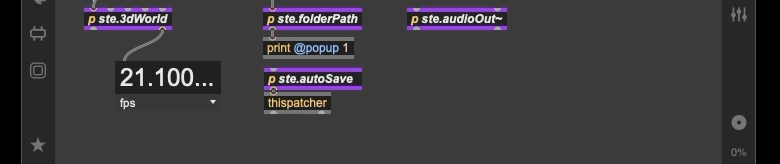
The Solution: Real-Time Friendly Codecs
HAP (Best Option)
HAP is the recommended codec for real-time video:
- Very fast playback
- Minimal CPU decoding effort
- Smooth interaction
Results:
- High frame rates (90–110 FPS)
- Stable performance even during heavy interaction
Best choice for Max and real-time systems
DNxHR (Windows Friendly)
- Good performance
- Slightly heavier than HAP
- Still usable for real-time
Typical performance:
- ~70–90 FPS
Apple ProRes (Mac Friendly)
- Similar to DNxHR
- More common in Mac workflows
Performance:
- Solid, but not as fast as HAP
Key Insight
There’s always a trade-off:
- H.264 → small size, slow decoding
- HAP / ProRes / DNxHR → larger size, fast decoding
For real-time interaction:
Playback performance matters more than file size
Recommended Tool: Shutter Encoder
Free and easy-to-use software:
- Drag & drop your video
- Choose output codec
- Export quickly
Basic Workflow
- Load your video
- Choose function → HAP (recommended)
- (Optional) Add suffix to filename
- Start export
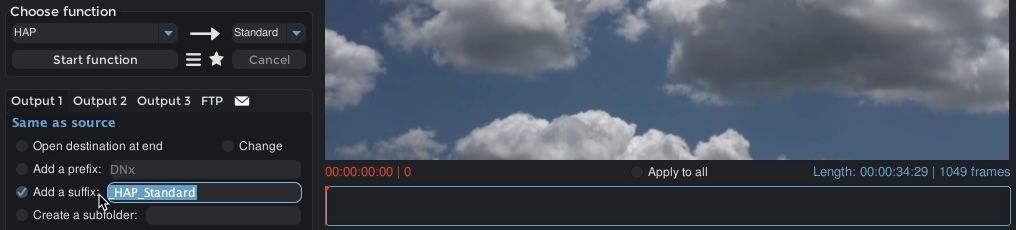
HAP Options
- Standard → best default
- Alpha → supports transparency
- Q → higher quality (heavier)
Why This Matters
In interactive systems, you might:
- Scrub video
- Change speed dynamically
- Jump within the video timeline
- Control playback with input (movement, sensors)
These actions require fast frame access:
Compressed formats like H.264 are not built for that.
Key Takeaway
For real-time video interaction
Codec choice = performance
Are you generating / editing the video with an editing software?
- Export your video in “.mov” with Pro Res or DNxHR codec (rarely you can do HAP)
- If necessary you can still re-export to HAP to gain more performance
You did not use an editing software?
- Load the video in Max
- Check if it works aesthetically for your intentions
- Check if the FPS drop below 60 FPS
- If “yes” and “yes” then re-export to .mov using the HAP codec
Once your media is optimized your patches run smoother, the interaction feels responsive and your system becomes more reliable.
PLOC’ is realized with the support of MA7 (Cultural Department of the City of Vienna)